
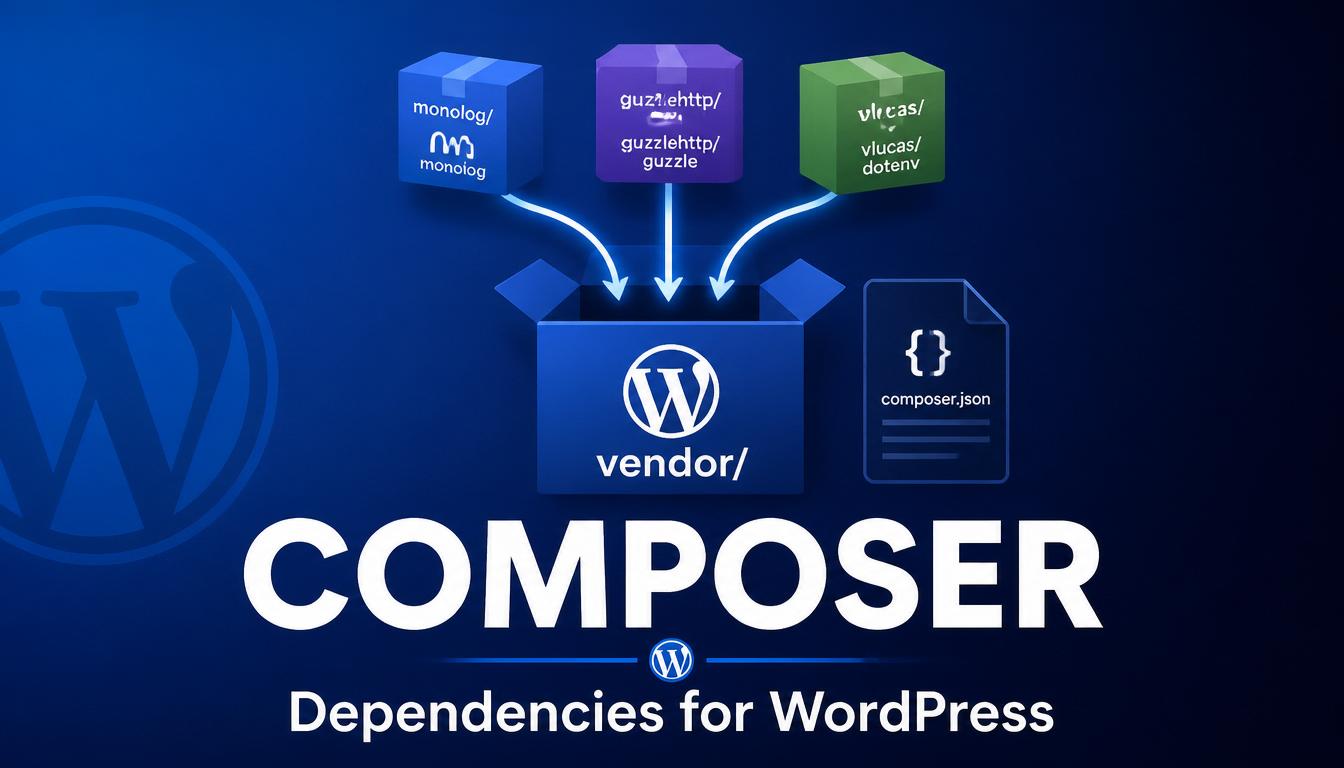
Introduction
Once your plugin needs a third-party library — say a PDF generator or an HTTP client — you face a choice. You can download the library, drop it in a folder, and hope you remember to update it by hand. Or you can use Composer, the dependency manager the entire modern PHP world relies on, and let it handle downloading, updating, and autoloading for you.
Composer is a tool that reads a list of libraries your project needs, downloads the correct versions, and generates an autoloader so you can use them without manual require statements. Think of it as npm for PHP.
You will learn:
- What Composer is and the problem it solves
- How composer.json, the lock file, and the vendor folder fit together
- How to add, update, and remove dependencies
- How Composer’s autoloader works with your own namespaced code
- The right way to use Composer in a plugin versus a whole site
What Composer Actually Does
Composer manages dependencies. Instead of copying library files into your project and tracking versions yourself, you declare what you need and Composer fetches it from Packagist, the central PHP package repository.
It solves three problems at once:
- Downloading — it pulls the exact library versions you ask for.
- Version resolution — it works out compatible versions when libraries depend on other libraries.
- Autoloading — it generates a single autoloader that loads every dependency and your own classes.
Install Composer once on your machine from getcomposer.org. After that, the composer command is available in your terminal.
composer.json: The Heart of the Project
{
    "name": "kubic/my-plugin",
    "description": "A WordPress plugin",
    "require": {
        "php": ">=8.0"
    },
    "autoload": {
        "psr-4": {
            "Kubic\\Plugin\\": "src/"
        }
    }
}
The require section lists the packages your project needs to run. The autoload section maps your namespace to your source folder using PSR-4, so Composer loads your own classes alongside the libraries.
Adding a Dependency
composer require guzzlehttp/guzzleAfter this command you will see three things in your project:
- A new entry under require in composer.json
- A vendor/ folder containing the library and Composer’s autoloader
- A composer.lock file recording the exact versions installed
Use the library by including Composer’s autoloader once:
require_once __DIR__ . '/vendor/autoload.php';
use GuzzleHttp\Client;
$client = new Client();
The Lock File and the Vendor Folder
composer.lock
composer.json says what versions you allow, often as a range like ^7.0. composer.lock records the exact version actually installed. Commit the lock file to version control. When a teammate or your server runs composer install, the lock file guarantees they get the identical versions you tested with.
The vendor folder
The vendor/ folder holds all downloaded libraries and the generated autoloader. The convention is to not commit vendor/ to Git for site-level projects, because anyone can recreate it from the lock file with composer install. For distributed plugins it is the opposite — explained below.
install vs update
- composer install reads composer.lock and installs those exact versions. Use it on servers and when setting up a project.
- composer update ignores the lock file, fetches the newest versions allowed by composer.json, and rewrites the lock. Use it deliberately when you want to upgrade, then test the result.
The rule: run update on your own machine when you intend to upgrade, and run install everywhere else.
Version Constraints
"require": {
    "guzzlehttp/guzzle": "^7.5"
}
^7.5 means “at least 7.5, but below 8.0.” This lets you receive bug fixes automatically while protecting you from breaking changes.
Development-Only Dependencies
Tools like a code-style checker or testing framework are needed only while developing. Put these in require-dev:
composer require --dev squizlabs/php_codesnifferOn your server run composer install –no-dev, which skips development tools and keeps the deployed footprint small. WordPress Coding Standards, PHPUnit, and similar tools belong here.
Composer Scripts: Shortcuts for Common Tasks
{
    "scripts": {
        "lint": "phpcs",
        "fix":  "phpcbf",
        "test": "phpunit"
    }
}
Now composer lint runs PHPCS and composer test runs your test suite. Scripts keep common commands in one place so the whole team runs them the same way, and they slot neatly into CI pipelines.
Composer in a Plugin vs a Whole Site
A distributed plugin
If you ship a plugin to WordPress.org or to clients, you cannot assume the destination has Composer or that another plugin will not load a conflicting version of the same library. Commit the vendor/ folder so the plugin is self-contained, and consider using a prefixing tool such as PHP-Scoper or Strauss to rename your dependencies’ namespaces — this avoids clashes when two plugins bundle the same library.
A whole-site or client project
If you control the entire site, you can run Composer at the project root and manage everything centrally. Here you do not commit vendor/, because the server rebuilds it from the lock file during deployment.
Best Practices
- Commit composer.json and composer.lock so installs are reproducible.
- Run composer install (not update) on servers and in CI.
- Use require-dev for tools and deploy with –no-dev.
- Use caret constraints like ^7.5 to accept safe updates while blocking breaking major versions.
- For distributed plugins, bundle vendor/ and consider namespace prefixing.
- On production, generate an optimised autoloader: composer install –no-dev –optimize-autoloader.
- Never edit files inside vendor/ by hand — your changes vanish on the next install.
Common Mistakes
Running composer update on production. This pulls in the newest allowed versions, bypassing the ones you tested. Always run install on servers.
Forgetting to include the autoloader. If you require a library but never add require_once vendor/autoload.php, PHP cannot find the classes.
Committing vendor/ for a site project (or not committing it for a plugin). The convention flips depending on what you are building. Mixing them up leads to bloated repositories or broken deployments.
FAQ
Is Composer required for WordPress development?
No. You can build plugins and themes without it. But as soon as you need third-party libraries or want clean autoloading across many classes, Composer becomes the standard choice.
What is the difference between composer.json and composer.lock?
composer.json declares the versions you allow. composer.lock records the exact versions actually installed. Commit both — the lock file guarantees everyone gets identical versions.
Should I commit the vendor folder?
For a distributed plugin shipped to clients or WordPress.org, yes. For a site you control and deploy, no — the server rebuilds it from the lock file.
How do I update a single package?
Run composer update vendor/package-name. This updates just that package within your constraints and leaves the rest untouched.
Conclusion
Composer takes the manual pain out of using external libraries. You declare what you need in composer.json, Composer downloads the right versions, locks them for reproducibility, and generates an autoloader that loads both the libraries and your own namespaced classes.
Commit the lock file, run install on servers, separate dev tools with require-dev, and treat distributed plugins differently from site projects when deciding whether to bundle vendor/.