
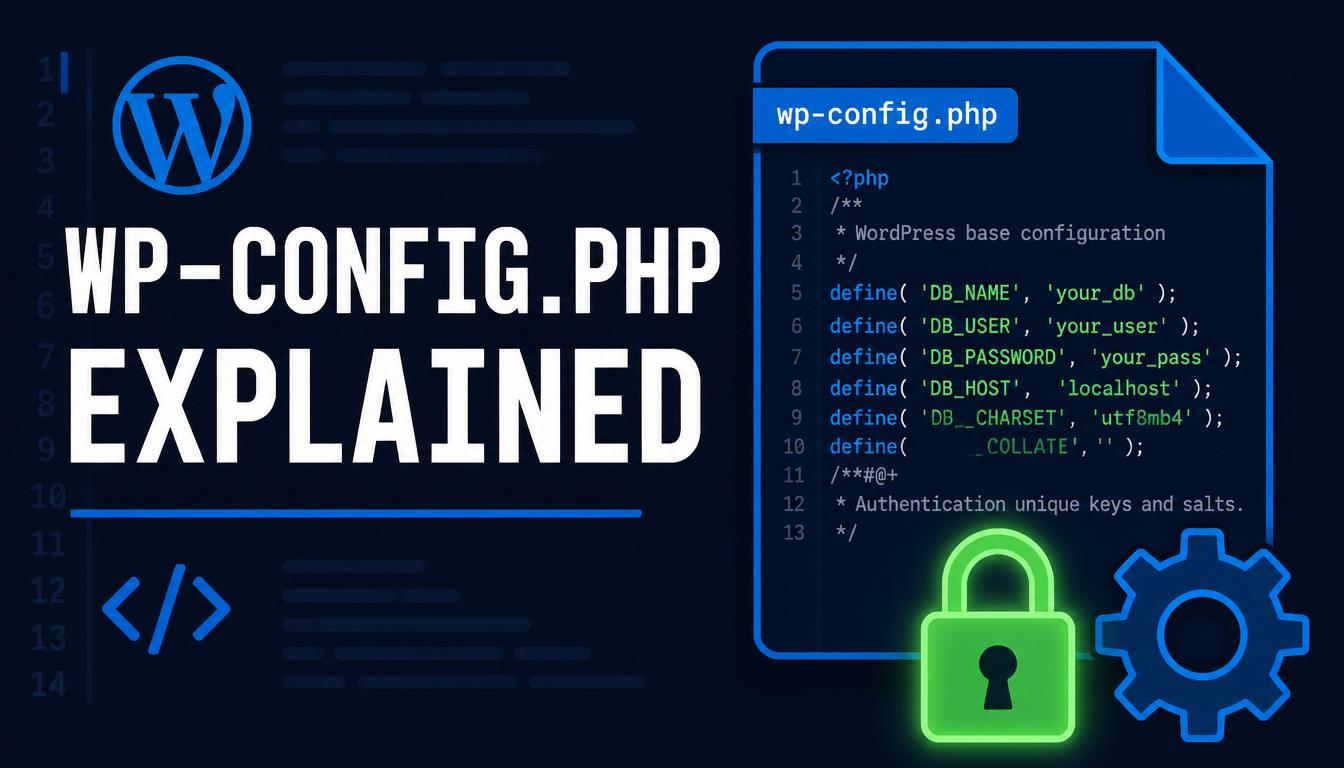
Introduction
wp-config.php is the most important configuration file in WordPress. It tells WordPress how to connect to the database, secures user sessions, and turns dozens of features on or off through PHP constants.
It is also one of the few core-level files you legitimately edit. Knowing what each setting does — and which ones matter for security, debugging, and performance — is essential developer knowledge.
This article is a practical reference. It covers:
- What wp-config.php is and where it lives
- The database and security settings WordPress requires
- The constants you will actually use: debugging, memory, security hardening, and more
- How to edit the file safely
A constant, in PHP, is a named value that cannot change once defined. WordPress reads these constants to decide how to behave. You set them with the define() function.
What wp-config.php Is and Where It Lives
wp-config.php sits in the root of your WordPress installation, alongside wp-admin, wp-includes, and wp-content. WordPress creates it during installation based on the database details you provide.
If you look at a fresh install, you may instead see wp-config-sample.php. That is the template; WordPress copies it to wp-config.php and fills in your details during setup. You can also copy it manually and edit it yourself.
There is one more place WordPress will look. If wp-config.php is not in the installation root, WordPress also checks the directory one level above it. Moving the file there — outside the publicly served folder — keeps credentials off the web root and is a small but genuine security improvement on many setups.
Two rules matter from the start:
- wp-config.php contains database credentials and security keys. Never commit it to a public Git repository.
- All your custom defines must go above the line that reads: /* That’s all, stop editing! Happy publishing. */ — anything below it may not take effect.
Database Settings (Required)
These settings connect WordPress to its database. WordPress cannot run without them.
define( 'DB_NAME',     'my_site' );
define( 'DB_USER',     'wp_user' );
define( 'DB_PASSWORD', 'a-strong-password' );
define( 'DB_HOST',     'localhost' );
define( 'DB_CHARSET',  'utf8mb4' );
define( 'DB_COLLATE',  '' );
What each does:
- DB_NAME — the name of the database WordPress uses.
- DB_USER — the database username.
- DB_PASSWORD — that user’s password.
- DB_HOST — where the database server is. Usually localhost, but some managed hosts use a different host name or a host:port value.
- DB_CHARSET — the character set. utf8mb4 supports the full range of characters including emoji and is the modern default.
- DB_COLLATE — the database collation. Leave it empty unless you have a specific reason to set it; WordPress chooses a sensible default.
Common pitfall: a wrong DB_HOST is the usual cause of the “Error establishing a database connection” message. If a connection fails, check this value against your host’s documentation.
The Table Prefix
$table_prefix = 'wp_';This is a variable, not a constant. It sets the prefix on every WordPress table name, so the posts table becomes wp_posts. It lets multiple WordPress installs share one database without colliding.
You set it once at install time and do not change it afterwards — changing it on a live site breaks everything unless you also rename tables and update stored references.
Authentication Keys and Salts
Below the database settings is a block of eight security constants:
define( 'AUTH_KEY',         '...' );
define( 'SECURE_AUTH_KEY',  '...' );
define( 'LOGGED_IN_KEY',    '...' );
define( 'NONCE_KEY',        '...' );
define( 'AUTH_SALT',        '...' );
define( 'SECURE_AUTH_SALT', '...' );
define( 'LOGGED_IN_SALT',   '...' );
define( 'NONCE_SALT',       '...' );
These keys and salts are used to encrypt the cookies that keep users logged in and to strengthen nonces. The longer and more random they are, the harder login cookies are to forge.
Practical points:
- Generate them from the official WordPress secret-key service at api.wordpress.org/secret-key/1.1/salt/. It returns a ready-to-paste block.
- Each install should have unique values. Never reuse the same keys across sites.
- Changing these values logs out every user immediately. That makes them a useful tool after a security incident — rotating them forces everyone to log in again.
Debugging Constants
These control WordPress’s debugging behaviour. They are essential during development and have their own dedicated article next in this cluster.
define( 'WP_DEBUG',         true );
define( 'WP_DEBUG_LOG',     true );
define( 'WP_DEBUG_DISPLAY', false );
define( 'SCRIPT_DEBUG',     true );
define( 'SAVEQUERIES',      true );
What each does:
- WP_DEBUG — turns debug mode on. WordPress reports PHP notices, warnings, and errors it would normally hide.
- WP_DEBUG_LOG — writes those errors to wp-content/debug.log instead of showing them. Ideal for catching issues without cluttering the page.
- WP_DEBUG_DISPLAY — controls whether errors appear on the page. Set it to false when logging, so visitors never see error output.
- SCRIPT_DEBUG — loads the full, unminified versions of core CSS and JavaScript.
- SAVEQUERIES — records every database query for inspection. Useful for performance work, but only enable it temporarily.
Critical rule: never leave WP_DEBUG or WP_DEBUG_DISPLAY on in production. Displaying errors can leak file paths and other sensitive details.
Memory Limits
define( 'WP_MEMORY_LIMIT',     '256M' );
define( 'WP_MAX_MEMORY_LIMIT', '512M' );
WP_MEMORY_LIMIT sets the PHP memory available to WordPress on the front end. WP_MAX_MEMORY_LIMIT sets a higher ceiling for memory-heavy admin operations like image processing and updates.
Important limitation: WordPress cannot exceed the hard limit set by the server’s php.ini. If the server caps PHP at 128M, raising these constants beyond that has no effect.
Security Hardening Constants
DISALLOW_FILE_EDIT
define( 'DISALLOW_FILE_EDIT', true );Removes the built-in theme and plugin code editors from the admin. If an attacker ever gains admin access, this stops them from editing your code directly through the browser.
DISALLOW_FILE_MODS
define( 'DISALLOW_FILE_MODS', true );A stricter option that disables all file modifications from the admin — no installing or updating themes and plugins through the dashboard. Use it deliberately, since it also blocks legitimate dashboard updates.
FORCE_SSL_ADMIN
define( 'FORCE_SSL_ADMIN', true );Forces the admin area and login over HTTPS. On any site with an SSL certificate, this should be on so credentials are never sent in plain text.
Site URL Constants
define( 'WP_HOME',    'https://example.com' );
define( 'WP_SITEURL', 'https://example.com' );
These override the site address and WordPress address normally stored in the database. Defining them in wp-config.php can speed up loading slightly and is handy when moving a site between environments.
Content and Revision Constants
define( 'WP_POST_REVISIONS',  5 );
define( 'AUTOSAVE_INTERVAL',  120 );
define( 'EMPTY_TRASH_DAYS', 7 );- WP_POST_REVISIONS — limits how many revisions WordPress keeps per post. Set a number to cap them, or false to disable revisions entirely.
- AUTOSAVE_INTERVAL — how often, in seconds, the editor autosaves a draft. The default is 60.
- EMPTY_TRASH_DAYS — how many days items stay in the trash before permanent deletion. The default is 30.
Environment Type
define( 'WP_ENVIRONMENT_TYPE', 'development' );This constant tells WordPress which environment it is running in. Accepted values are local, development, staging, and production (the default). Themes and plugins can read it with wp_get_environment_type() and behave differently per environment.
Auto-Update Control
define( 'WP_AUTO_UPDATE_CORE', 'minor' );Controls automatic core updates:
- true — all core updates, including major versions, install automatically.
- ‘minor’ — only minor and security releases auto-install. This is the default and a sensible balance.
- false — disable automatic core updates entirely.
How to Edit wp-config.php Safely
- Back up the file before editing. A single typo can take the whole site down.
- Add your defines above the “stop editing” comment line. Defines placed below it may be ignored.
- Use straight quotes, not curly quotes. Copying from a word processor can introduce smart quotes that cause PHP errors.
- Do not add a closing PHP tag at the end. Leaving it out prevents accidental whitespace from breaking headers.
- Edit on a local or staging copy first when you can, then deploy.
Best Practices
Keep wp-config.php out of public version control. It holds credentials and keys. Use .gitignore, and commit a sanitised sample if you need one in the repo.
Use unique keys and salts per site. Generate them from the official WordPress salt service and never reuse them.
Turn debugging off in production. WP_DEBUG and WP_DEBUG_DISPLAY belong in development, not on live sites.
Harden production with DISALLOW_FILE_EDIT and FORCE_SSL_ADMIN. These are low-effort, high-value settings.
Consider loading credentials from the environment. On servers and containers that expose environment variables, you can keep secrets out of the file entirely:
define( 'DB_NAME',     getenv( 'WORDPRESS_DB_NAME' ) );
define( 'DB_USER',     getenv( 'WORDPRESS_DB_USER' ) );
define( 'DB_PASSWORD', getenv( 'WORDPRESS_DB_PASSWORD' ) );
Common Mistakes
Leaving WP_DEBUG_DISPLAY on in production. This leaks file paths and error details to anyone who triggers an error. Always log instead of display on live sites.
Committing wp-config.php to a public repo. This exposes database credentials and security keys. Exclude it from version control.
Adding defines below the “stop editing” line. Constants placed there can be ignored. Always put custom defines above it.
Wrong DB_HOST after migration. Many “Error establishing a database connection” issues come from a database host that differs between environments.
Smart quotes from copy-paste. Curly quotes pasted from documents cause fatal PHP errors. Retype quotes in your editor if in doubt.
FAQ
Where is wp-config.php located?
In the root of your WordPress installation, alongside the wp-admin, wp-includes, and wp-content folders. On a Local site it is inside app/public.
What happens if I delete wp-config.php?
WordPress loses its database connection details and will launch the setup wizard again. Keep a backup before editing so you can restore it if needed.
How do I generate new keys and salts?
Use the official WordPress service at api.wordpress.org/secret-key/1.1/salt/. It returns a complete block you can paste in. Note that changing them logs out all users.
Should I change the table prefix for security?
Changing wp_ to something custom is fine at install time but offers little real security benefit. Never change it on a live site without also renaming tables and updating stored references.
Why is my memory limit constant being ignored?
WordPress cannot exceed the server’s php.ini memory limit. If the server caps PHP below your constant, raise the limit at the server level or ask your host.
Can I move wp-config.php out of the web root?
Yes. WordPress automatically checks one directory above the installation root for wp-config.php, so you can move it there to keep it outside the publicly served folder.
Conclusion
wp-config.php is where WordPress is configured at the lowest level. The settings that matter most fall into a few groups:
- Database settings connect WordPress to its data and are required.
- Keys and salts secure user sessions — keep them unique and private.
- Debugging constants are essential in development and must be off in production.
- Hardening constants like DISALLOW_FILE_EDIT and FORCE_SSL_ADMIN protect live sites cheaply.
Treat the file with care: back it up, keep it out of public repos, and add custom defines above the “stop editing” line.